By
By 
On Instagram, people can see “Seen” under their DM once you open it. If you want to read messages without that pressure, Instagram lets you turn read receipts off for all chats or for single people. Here’s how to turn off read receipts on Instagram on iPhone and Android, and what the other person sees.
Short answer: in the Instagram app, go to your profile → menu (three lines) → Settings and activity → Messages and story replies → Show read receipts and turn it off. For one chat, open the conversation, tap the person’s name at the top → Privacy and safety → turn off Read receipts. Read receipts are on by default.
Applies to: Instagram app for iPhone and Android, October 2026.
How to turn off read receipts for all chats
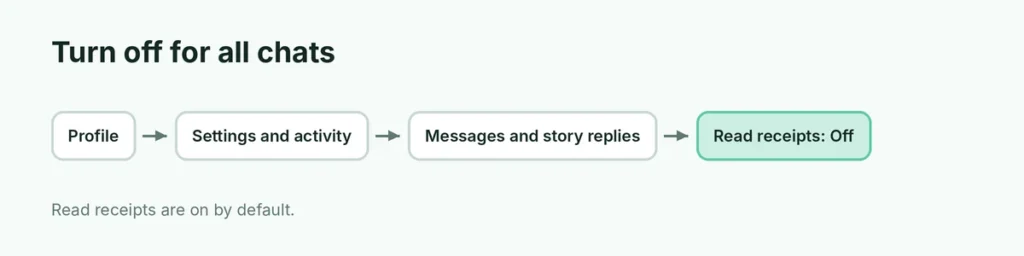
- Open Instagram and tap your profile picture (bottom right).
- Tap the menu (three lines) at the top right.
- Tap Settings and activity.
- Tap Messages and story replies.
- Tap Show read receipts and turn it off.
Now people won’t see Seen when you read their messages.
How to turn off read receipts for one person
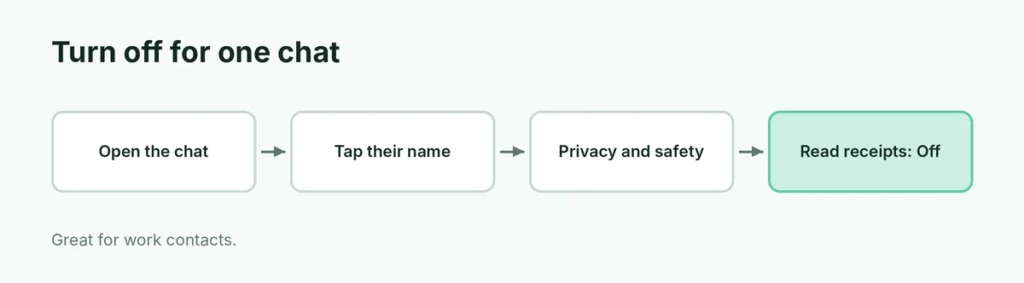
- Open your DMs and tap the chat.
- Tap the person’s name at the top.
- Tap Privacy and safety.
- Turn off Read receipts.
This is useful if you want your best friend to see “Seen” but not a work contact.
What changes when read receipts are off
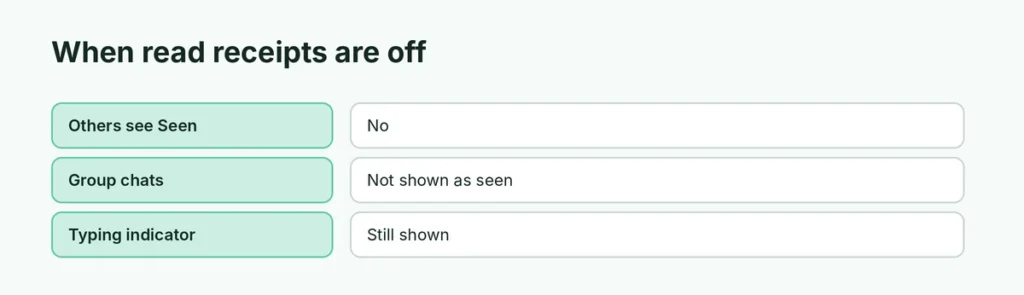
| Read receipts on | Read receipts off | |
|---|---|---|
| Others see “Seen” when you read | Yes | No |
| Group chats | Shows who has seen | Your name isn’t shown as seen |
| Typing indicator | Shown | Still shown |
Other ways to read without “Seen”
- Notification preview: read short messages from the notification without opening the chat.
- Restrict: if you restrict someone, their messages move to Message requests, and they usually can’t see when you’ve read them.
Turn off Activity Status too
Read receipts and Activity Status (the green dot and “Active now”) are separate. To hide when you’re online: Settings and activity → Messages and story replies → Show activity status → turn off. When it’s off, you also can’t see other people’s activity status.
Read receipts not turning off?
- Update Instagram from the App Store or Google Play.
- Professional accounts may see the setting under a slightly different menu; look in Messages and story replies.
- Log out and back in if the option doesn’t save.
- Meta Accounts Center doesn’t control this; it’s an Instagram-only setting.
Other apps
- iPhone Messages: here’s how to turn off read receipts on iPhone.
- WhatsApp: Settings → Privacy → Read receipts.
Related guides
- How to turn off read receipts on iPhone
- How to hide followers on Instagram
The short version
Go to Settings and activity → Messages and story replies → Show read receipts and turn it off for everyone, or open a chat → tap the name → Privacy and safety → Read receipts for one person.
Sources
- SlashGear: How to turn off read receipts on Instagram
- Instagram Help Center: Instagram messaging help