By
Instagram’s Instants feature lets friends send quick disappearing photos that pile up in your inbox, and it’s easy to send one by accident too. If you don’t want to see them, or you shared a photo you didn’t mean to, here’s how to turn off Instagram Instants, hide them from your inbox, and take back a photo you sent by mistake.
Short answer: go to your profile → menu (three lines) → Settings → scroll to Content preferences and turn on Hide Instants in Inbox. That removes Instants from your inbox, including ones friends send you. To hide them just for now, press and hold the pile of Instants in your inbox and swipe right. If you sent one by accident, tap Undo under the shutter right away, or delete it from your Instants archive so friends who haven’t opened it won’t see it.
Applies to: Instagram app for iPhone and Android, October 2026. Instants launched globally in May 2026.
What are Instagram Instants?
Instants are quick photos you take inside Instagram that disappear after friends see them. They’re meant for sharing what’s happening right now, without filters or editing.
- Who sees them: by default, your Friends list. You can switch to Close Friends before you tap the shutter.
- No viewer list: you won’t see a list of who viewed it. Replies and reactions are private.
- Where they appear: as a stack at the top of the Messages inbox.
How to turn off Instants in your inbox
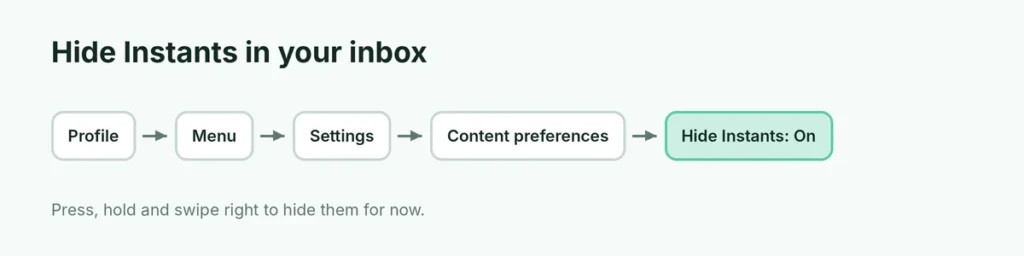
- Open Instagram and tap your profile picture (bottom right).
- Tap the menu (three lines) at the top right.
- Open Settings.
- Scroll to Content preferences.
- Turn on Hide Instants in Inbox.
Instants from friends no longer show in your inbox. Turn the switch off any time to see them again.
Hide Instants temporarily
If you only want them out of the way for now:
- Open your Messages inbox.
- Press and hold the pile of Instants.
- Swipe right to hide it.
How to unsend an Instant you shared by accident
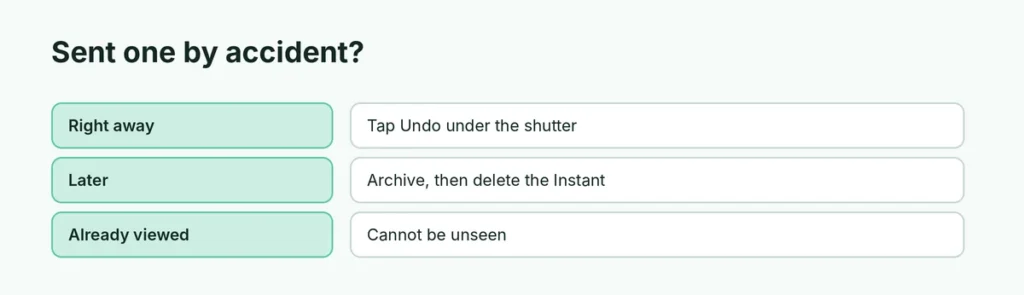
| When | What to do |
|---|---|
| Right after you send | Tap Undo below the shutter button (works before anyone views it) |
| Later | Open the Instants camera → tap the archive icon (four boxes, top right) → delete the Instant |
Deleting from the archive unsends it to friends who haven’t opened it yet. Anyone who already saw it can’t “unsee” it, so act fast.
Share Instants with fewer people
If you still want to use Instants but more privately:
- Switch the audience toggle to Close Friends before taking the photo.
- Review your Close Friends list: Settings → Close Friends.
Can I stop friends sending me Instants?
There’s no switch to block one person from sending Instants, but you can:
- Hide Instants in Inbox (stops all of them showing).
- Mute or Restrict that person’s messages.
- Remove them from your followers or friends if needed.
Instants vs. Stories vs. Close Friends
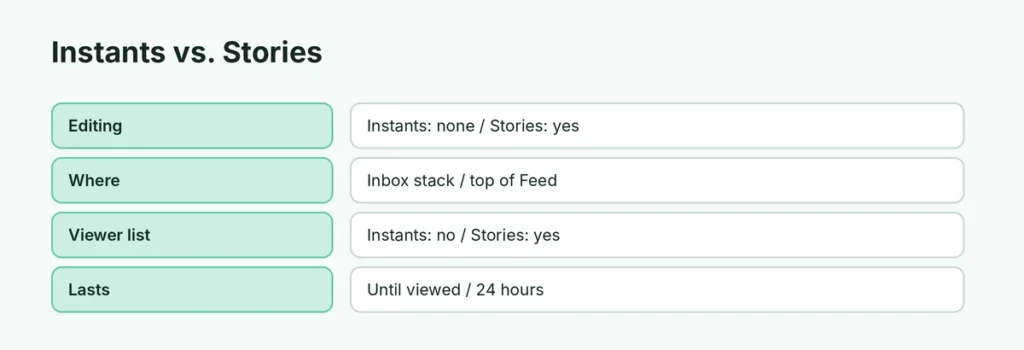
| Instants | Stories | |
|---|---|---|
| Editing and filters | No | Yes |
| Where it shows | Inbox stack | Top of Feed |
| Viewer list | No | Yes |
| Lasts | Disappears after viewing | 24 hours |
Tips for parents
Instants make it easy for teens to share instant, unedited photos with their whole friend list. On a teen account, check the audience setting together, use Close Friends, and turn on Hide Instants in Inbox if they find it distracting. Instagram’s Family Center also offers supervision tools.
Related guides
- How to turn off Instagram read receipts
- How to hide followers on Instagram
The short version
Turn on Settings → Content preferences → Hide Instants in Inbox to stop seeing Instants. Press and hold the pile and swipe right to hide them for now. If you sent one by mistake, tap Undo immediately or delete it from your Instants archive before friends open it.