By
The Discord overlay shows who’s talking, chat pop-ups and notifications on top of your game. It’s handy, but it can cover parts of the screen, cause stutter in some games, or trigger anti-cheat warnings. Here’s how to turn off the Discord overlay for all games or just one, including the newer overlay Discord introduced in 2025.
Short answer: open Discord User Settings (gear icon, bottom left) → scroll to Activity Settings → Game Overlay and turn off Enable Overlay (on older versions: Enable in-game overlay). To turn it off for one game only, click the Enable Overlay item (not the switch) to see per-game options, or use Registered Games / Activity Privacy on older versions and click the monitor icon next to the game so it’s crossed out.
Applies to: Discord desktop app for Windows (the overlay isn’t available on phones), October 2026. Discord changes menu names often; look for “Game Overlay”.
How to turn off the Discord overlay for all games
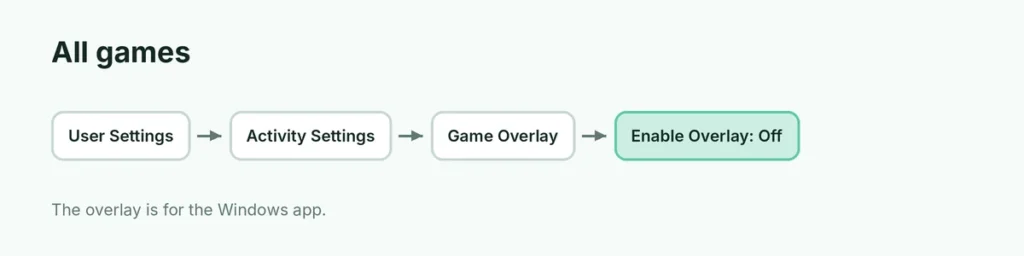
- Open Discord on your PC.
- Click the gear icon (User Settings) at the bottom left.
- In the left menu, scroll to Activity Settings.
- Click Game Overlay.
- Turn off Enable Overlay.
The overlay won’t appear in any game.
How to turn off the overlay for one game
Newer Discord (2025 overlay):
- Go to User Settings → Game Overlay.
- Click the Enable Overlay item (the text, not the switch) to expand it.
- Turn the overlay off for the game you choose, or use the Currently Playing section while the game is running.
Older Discord versions:
- User Settings → Registered Games (or Activity Privacy).
- Find the game.
- Click the monitor icon so it shows a red line through it.
Legacy overlay
Discord’s 2025 update added a new overlay. If you prefer the old one, turn off Enable Overlay and turn on Enable Legacy Overlay in the same Game Overlay settings. The legacy overlay also has per-game options.
Overlay settings worth changing instead
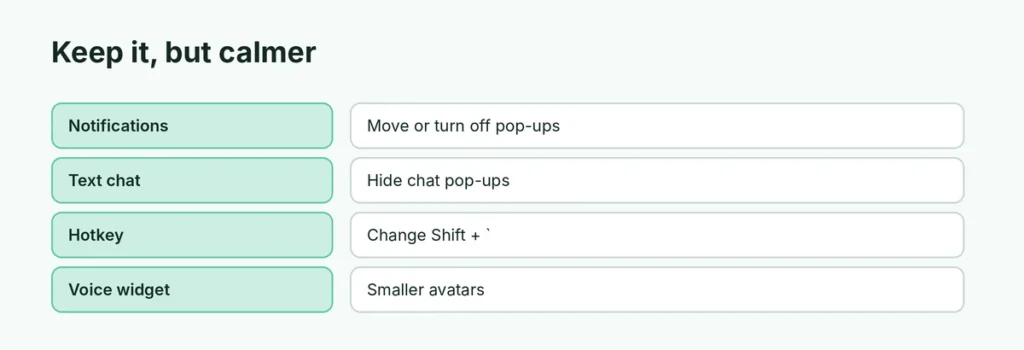
If you want to keep the overlay but make it less annoying:
| Setting | What it does |
|---|---|
| Overlay notifications position | Move or turn off pop-ups |
| Show text chat notifications | Turn off chat pop-ups in games |
| Overlay hotkey | Change the key that opens it (default Shift + `) |
| Avatar size / display names | Make the voice widget smaller |
Why turn off the Discord overlay?
- Performance: the overlay can cause stutter or FPS drops in some games.
- Anti-cheat: some games’ anti-cheat tools dislike overlays.
- Clean screen: for streaming or recording without pop-ups.
- Crashes: turning it off is a common fix when a game crashes on launch.
Other overlays you may want to turn off
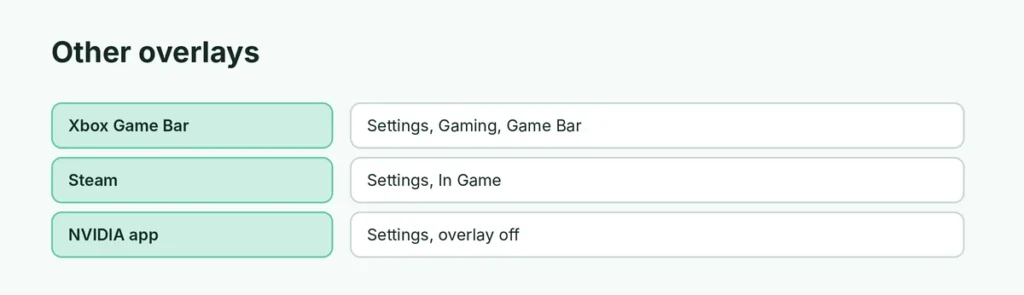
- Xbox Game Bar: Windows Settings → Gaming → Game Bar → turn off the shortcut.
- Steam overlay: Steam → Settings → In Game → uncheck Enable the Steam Overlay while in-game.
- NVIDIA app overlay: NVIDIA app → Settings → turn off the in-game overlay.
Overlay not showing when you want it?
Turn it back on in Game Overlay, run Discord as administrator if the game runs as admin, and make sure the game isn’t in exclusive fullscreen mode that blocks overlays.
Related guides
- Can you stream Netflix on Discord?
- How to turn off Narrator in Windows
The short version
In Discord, go to User Settings → Activity Settings → Game Overlay and turn off Enable Overlay. For one game, click the Enable Overlay item for per-game options, or on older versions click the monitor icon in Registered Games.
Sources
- esports.gg: How to turn off Discord overlay after the Discord update
- How-To Geek: How to turn off the Discord overlay