By
By 
Autocorrect is supposed to fix typos, but on iPhone it sometimes changes the right word into the wrong one, especially names, slang and other languages. Here’s how to turn off autocorrect on iPhone, how to keep it but stop the worst mistakes, and the related settings like predictive text and auto-capitalization.
Short answer: go to Settings → General → Keyboard and turn off Auto-Correction. In the same menu you can also turn off Predictive Text, Auto-Capitalization, Smart Punctuation and Check Spelling. If you only hate one wrong word, add it to Text Replacement instead of turning everything off.
Applies to: iPhone and iPad on iOS 26 and iOS 27. Last checked in October 2026.
How to turn off autocorrect on iPhone
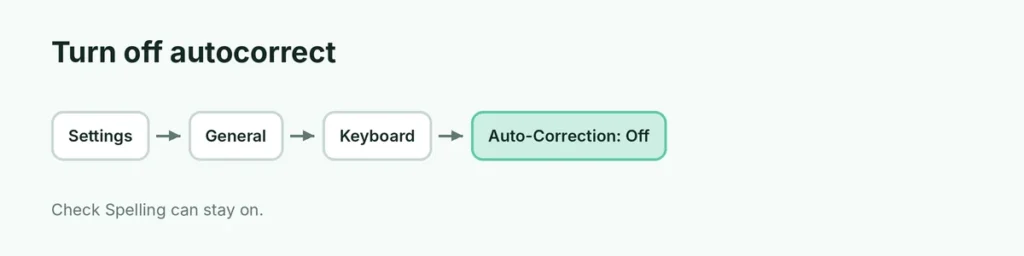
- Open Settings.
- Tap General.
- Tap Keyboard.
- Turn off Auto-Correction.
Now iPhone won’t change words as you type. You’ll still see a red underline under misspelled words if Check Spelling is on; tap the word to see suggestions.
Related keyboard settings
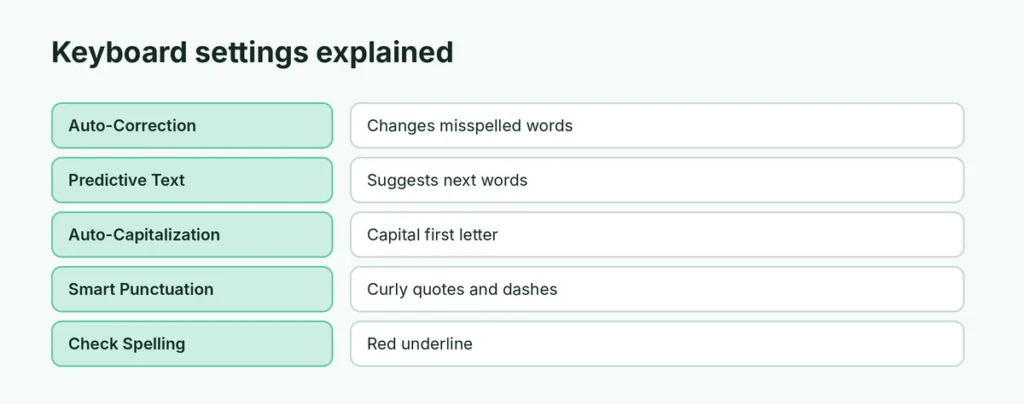
All of these are in Settings → General → Keyboard:
| Setting | What it does | Turn off if |
|---|---|---|
| Auto-Correction | Changes misspelled words | It keeps changing correct words |
| Predictive Text | Suggests next words above the keyboard | You don’t use the suggestions |
| Show Predictions Inline | Shows grey suggested text as you type | The grey text is distracting |
| Auto-Capitalization | Capitalizes the first word of sentences | You prefer typing lowercase |
| Smart Punctuation | Turns quotes into curly quotes, — into a dash | You type code or passwords |
| Check Spelling | Red underline under errors | You don’t want any spell check |
| “.” Shortcut | Double-space types a period | You hit it by accident |
Fix one word instead of turning autocorrect off
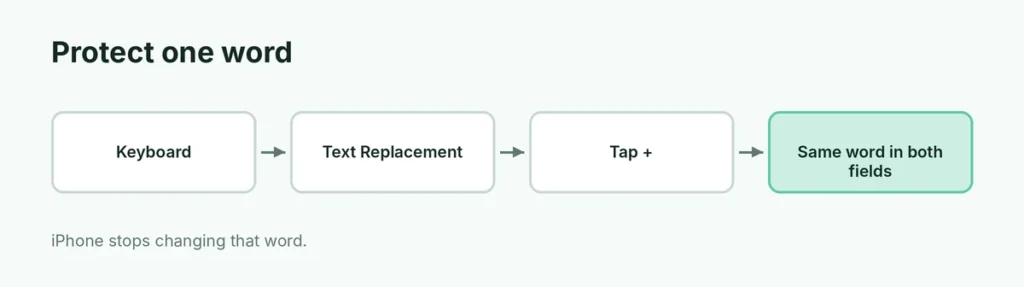
If autocorrect keeps changing one word, like your name or a brand:
- Settings → General → Keyboard → Text Replacement.
- Tap +.
- Type the word in both Phrase and Shortcut (exactly as you want it).
- Tap Save.
iPhone learns that word and stops “fixing” it.
Undo an autocorrect change
- Tap Backspace right after a change: iPhone often shows the original word to tap.
- Shake to Undo or swipe left with three fingers to undo typing.
Reset the keyboard dictionary
If autocorrect learned wrong words:
- Settings → General → Transfer or Reset iPhone.
- Tap Reset → Reset Keyboard Dictionary.
- Enter your passcode.
This deletes custom words iPhone learned (not your Text Replacements).
Autocorrect in other languages
If you type in two languages, add both keyboards: Settings → General → Keyboard → Keyboards → Add New Keyboard. With the right keyboard selected, autocorrect fixes words in that language instead of forcing English. Some languages support multilingual typing on one keyboard.
Turn off autocorrect in other keyboards
- Gboard on iPhone: open the Gboard app → Keyboard settings → turn off Auto-correction.
- Mac: System Settings → Keyboard → Text Input → Edit → turn off Correct spelling automatically.
Should I turn autocorrect off?
If you type fast and make many small typos, autocorrect saves time. If it mostly changes names, slang or a second language, turning it off (with Check Spelling on) gives you more control. Try a week each way and see which you prefer.
Related guides
- How to connect a keyboard to an iPad
- How to turn off vibration on iPhone
The short version
Turn off Settings → General → Keyboard → Auto-Correction to stop iPhone changing words. Use Text Replacement to protect specific words, Reset Keyboard Dictionary to clear bad learned words, and switch off Predictive Text or Smart Punctuation if they bother you too.
Sources
- Apple: iPhone User Guide