By
You press the power button and nothing happens: no chime, no Apple logo, just a black screen. Before you panic, know that most MacBooks that “won’t turn on” are actually a drained battery, a bad charger, or a Mac that’s on but stuck with a dark screen. Here’s how to fix a MacBook that’s not turning on, in a safe order.
Short answer: plug in the original power adapter, check the cable is firmly in a working wall outlet, and charge for at least 10 minutes. Then press and hold the power button for about 10 seconds, let go, and press it once more. If you hear a fan or see the keyboard light but the screen stays black, the Mac is on and the display is the problem. If it shows nothing at all with a known-good charger, it needs repair.
Applies to: MacBook Air and MacBook Pro, Apple silicon (M1 to M5) and Intel, macOS Tahoe 26 and earlier, November 2026.
Is it off, or just a black screen?
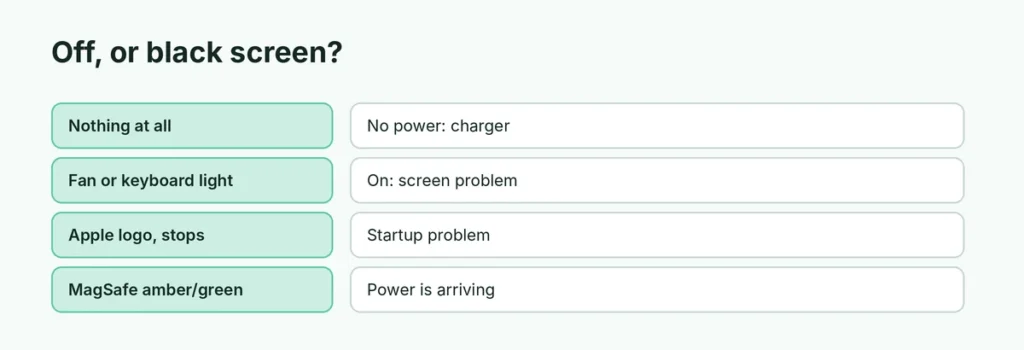
| Sign | What it means |
|---|---|
| No sound, no fan, no light, nothing | It has no power: start with the charger steps |
| Fan spins, keyboard lights, Caps Lock light works | The Mac is on: the screen or startup is the problem |
| Apple logo, then it stops or restarts | It’s on but can’t finish starting up |
| MagSafe light amber or green | Power is reaching the Mac |
Step 1: Charge it properly
- Use an Apple adapter with enough watts for your model. A small phone charger may not be able to start a dead MacBook.
- Plug the adapter into a wall outlet, not a power strip.
- Check the MagSafe light if you have one: amber means charging, green means full. Amber flashing three times can mean a hardware problem.
- Charge for 10 minutes, then try the power button.
If your MacBook has several USB-C ports, try a different port and flip the connector over.
Step 2: Force it off and on
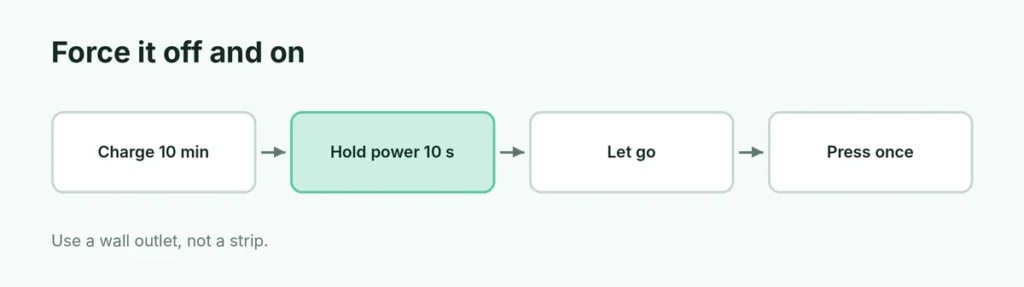
A Mac can get stuck in a state where it’s neither fully on nor off. To clear it:
- Press and hold the power button (Touch ID button) for about 10 seconds.
- Let go, wait a few seconds.
- Press it once to turn the Mac on.
Step 3: Check the ports and charger
- Look into the port with a flashlight. Lint and dust stop the charger connecting. Clean it gently with a dry, soft, nonmetallic brush; never use metal or compressed air.
- Try another Apple cable and adapter if you can borrow one. Cables fail more often than Macs.
- Unplug everything else: hubs, drives, monitors. A faulty accessory can stop startup.
If it turns on but the screen stays black
- Press the brightness up key a few times. The screen might be at zero.
- Connect an external monitor. If you see the desktop there, the built-in display needs service.
- On Intel MacBooks, a SMC reset can help; on Apple silicon Macs, a full shutdown and restart does the same job.
If it stops at the Apple logo
Your Mac turns on but can’t finish starting up. Start it in macOS Recovery (on Apple silicon, hold the power button until you see Loading startup options) and choose Disk Utility → First Aid, or reinstall macOS. Back up first if you can. Reinstalling macOS keeps your files, but a backup is still wise.
Signs it needs a repair

- No light, no sound and no fan even with a known-good charger
- MagSafe light flashing amber repeatedly
- It was dropped or got wet; liquid can short the board
Book a repair with Apple or an Apple Authorized Service Provider. Mention what you already tried; it saves time.
Related guides
- MacBook not charging? How to fix it
- Laptop battery health: how to check it
- How to turn on a Lenovo laptop
The short version
Charge with the right Apple adapter from a wall outlet for 10 minutes, then hold the power button for 10 seconds and press it again. Clean the port and try another cable. If the fan or keyboard lights come on, it’s the screen or startup, not power. No signs of life with a known-good charger means it’s time for a repair.
Sources
- Apple Support: Mac laptops: troubleshooting power and startup issues
- Apple Support: If your Mac doesn’t turn on