By
Your AirPods die after a few minutes, the case light won’t come on, or one earbud stays at 0%. AirPods charging problems are usually caused by dirt in the case, a bad cable, or a case that’s sitting wrong on a wireless charger. Here’s how to fix AirPods that are not charging, starting with the quickest fixes.
Short answer: put both AirPods in the case, close the lid, and connect the case to a USB-C or Lightning cable plugged into a wall adapter. Charge for at least 15 minutes. If you use a wireless charger, place the case with the status light facing up and check that the light comes on for a few seconds. Still nothing? Clean the case’s charging port and the metal contacts inside the case, try another cable, then reset your AirPods.
Applies to: all AirPods, AirPods Pro and AirPods 4 models with iOS 26, November 2026. AirPods Max are covered briefly at the end.
Check the charge level first
You can see exactly what’s charging and what isn’t:
- iPhone: open the case lid next to your unlocked iPhone; a card shows the battery of each AirPod and the case. You can also add the Batteries widget to your Home Screen.
- Mac: click the Bluetooth icon in the menu bar and hover over your AirPods.
- The case light: with AirPods inside and the lid open, green means charged, amber means less than a full charge remains.
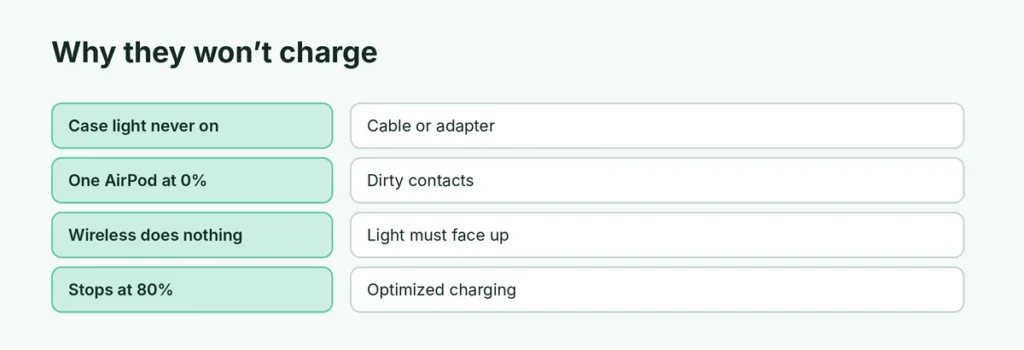
| What you see | Likely cause | Fix |
|---|---|---|
| Case light never turns on | Cable, adapter or port | Try a different cable and wall adapter |
| Case charges, one AirPod doesn’t | Dirty contacts or a seated earbud | Clean the bottom of the AirPod and the slot |
| Wireless charging does nothing | Case not lined up on the mat | Light facing up, centred; try a cable |
| Stops at 80% | Optimized charging | Normal; it finishes charging later |
Fix 1: Charge with a cable for 15 minutes
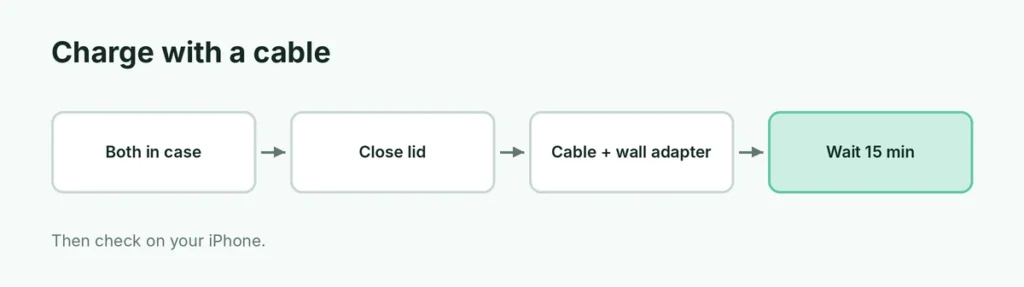
- Put both AirPods in the case and close the lid.
- Connect a USB-C or Lightning cable (depending on your case) to the case.
- Plug the cable into a USB wall adapter, and the adapter into a working outlet.
- Wait at least 15 minutes, then check the battery on your iPhone.
Use an Apple cable or a certified (MFi) one if you can. Frayed or cheap cables are the most common cause.
Fix 2: Wireless charging done right
- Place the case status light facing up in the centre of the Qi or MagSafe charger.
- The light should turn on for a few seconds and then turn off while charging continues.
- If the light doesn’t come on, move the case slightly. A thick case cover can block charging.
- If it still doesn’t charge wirelessly, charge with a cable to rule out the case itself.
Fix 3: Clean the case and the AirPods
Dirt and earwax on the contacts stop charging more often than anything else:
- Look into the charging port with a light. Remove lint gently with a dry, soft brush or a wooden toothpick. Never use metal.
- Wipe the metal contacts inside the AirPod slots with a dry cotton swab.
- Clean the bottom stem of each AirPod with a dry, lint-free cloth.
- Don’t use liquids inside the case or ports.
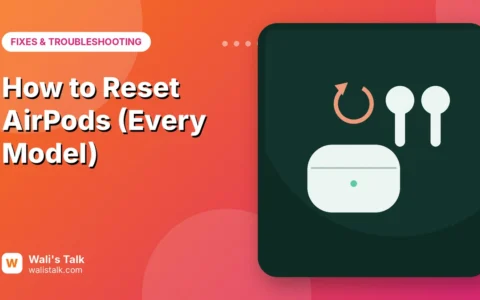
Fix 4: Reset your AirPods
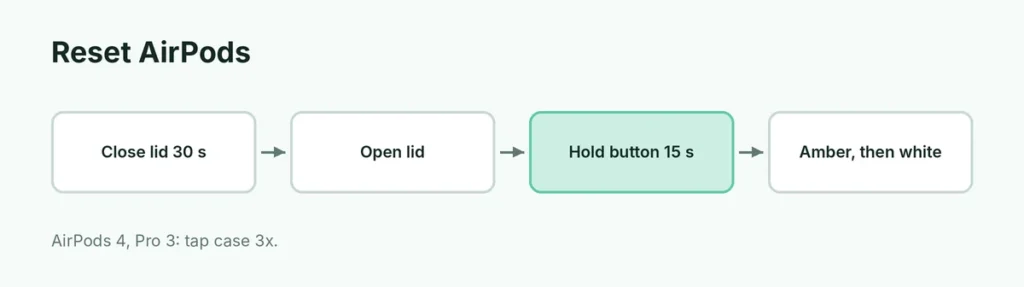
A reset fixes a case that reports the wrong battery or an AirPod that won’t wake up. It erases your custom settings, which you’ll set up again.
- Put AirPods in the case, close the lid and wait 30 seconds.
- Open the lid.
- AirPods 1, 2, 3 or AirPods Pro 1 and 2: press and hold the setup button on the back of the case for about 15 seconds, until the light flashes amber, then white.
- AirPods 4 or AirPods Pro 3: double-tap the front of the case three times.
- Reconnect them to your iPhone.
Full steps with pictures: how to reset AirPods.
Charging stops at 80 percent
Your iPhone may hold AirPods at 80% to protect the battery (Optimized Battery Charging). It’s normal. On AirPods Pro 3, turn off Optimized Charge Limit in your iPhone’s AirPods settings if you want them charged to 100%.
AirPods Max not charging
Charge them for at least 5 minutes with the cable that came with them. Between uses, put them in the Smart Case so they enter low-power mode.
When to get them replaced
AirPods batteries wear out after a few years of daily use. If they’re clean, reset and still won’t hold a charge, contact Apple. Apple can replace a single AirPod or the case, and it’s often covered by warranty or AppleCare+.
Related guides
- AirPods not connecting to iPhone? How to fix it
- One AirPod not working? How to fix it
- How to reset AirPods
The short version
Charge the case with a cable from a wall adapter for 15 minutes, with both AirPods inside. On wireless chargers, put the light facing up and watch for it to blink on. Clean the port and the metal contacts, then reset the AirPods by holding the setup button for 15 seconds (or triple double-tapping the case on AirPods 4 and Pro 3).
Sources
- Apple Support: If your AirPods won’t charge
- Apple Support: Restart, unpair, or reset your AirPods