By
Your Apple Watch shows a red iPhone icon, messages stop arriving, and the Watch app says it’s not connected. A disconnected watch is almost always fixed by a Bluetooth or Airplane Mode setting, a restart, or, at worst, unpairing and pairing again. Here’s how to fix an Apple Watch that’s not connecting to your iPhone.
Short answer: keep the watch and iPhone close together. On the iPhone, open Control Center and make sure Airplane Mode is off and Wi-Fi and Bluetooth are on. On the watch, press the side button to open Control Center and check Airplane Mode is off there too. Then restart both devices. If it still won’t connect, unpair and pair again from the Watch app on your iPhone. Your watch is backed up to the iPhone, so you can restore it.
Applies to: all Apple Watch models with watchOS 26 and iPhone with iOS 26, November 2026.
How to tell if your watch is disconnected
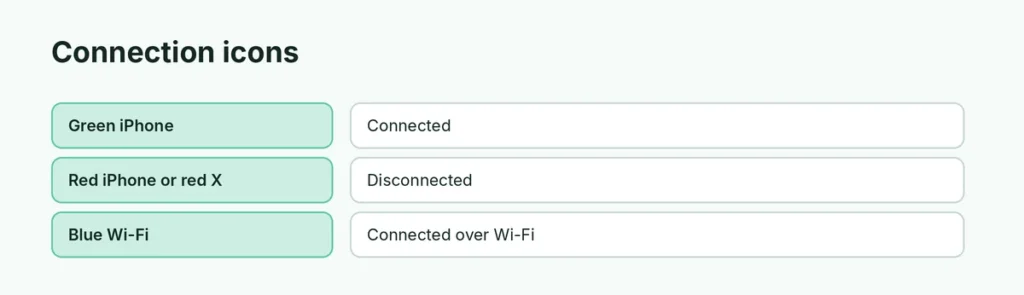
Open Control Center on your watch (press the side button):
| Icon | Meaning |
|---|---|
| Green iPhone icon | Connected to your iPhone |
| Red iPhone icon | Disconnected from your iPhone |
| Red X | Disconnected |
| Blue Wi-Fi icon | Connected over Wi-Fi instead of Bluetooth |
Fix 1: Check Bluetooth, Wi-Fi and Airplane Mode
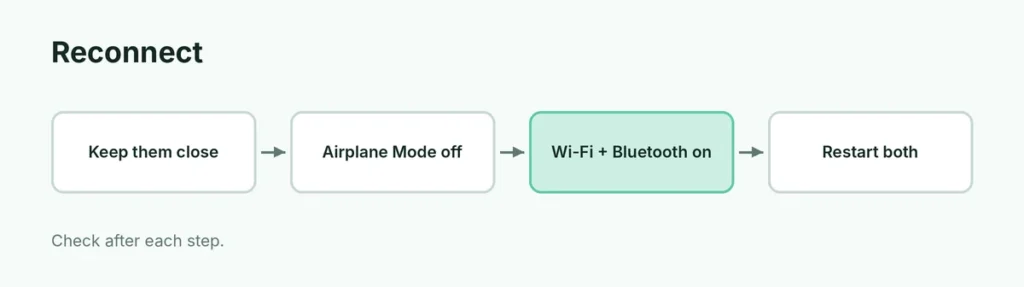
- Put the watch and iPhone next to each other.
- On your iPhone, swipe down from the top-right corner to open Control Center.
- Make sure Airplane Mode is off, and Wi-Fi and Bluetooth are on (blue).
- On your watch, press the side button and make sure Airplane Mode is off.
Turning Bluetooth off in Control Center only disconnects accessories for a while; check Settings → Bluetooth on the iPhone to make sure it’s really on.
Fix 2: Restart both devices
- Turn off your Apple Watch: press and hold the side button, tap the power icon and drag the slider. Turn it back on with the side button.
- Restart your iPhone.
- Wait a minute and check the connection icon again.
Frozen watch? Force restart it by holding the side button and Digital Crown for 10 seconds. More: how to restart an Apple Watch.
Fix 3: Update both devices
Connection bugs are often fixed in updates:
- iPhone: Settings → General → Software Update.
- Watch: open the Watch app on your iPhone → General → Software Update.
The watch needs to be on its charger and at least 50% charged to update.
Fix 4: Unpair and pair again

If nothing else works, unpair. Your iPhone backs up the watch first, so you can restore it.
- Open the Watch app on your iPhone and tap All Watches.
- Tap the info (i) button next to your watch, then Unpair Apple Watch.
- On a cellular model, choose to keep your plan.
- Enter your Apple Account password to turn off Activation Lock.
- When the watch restarts, hold it near the iPhone and follow the pairing screens, choosing Restore from Backup.
New iPhone? Use our guide to pair Apple Watch with a new phone.
Watch connects, but notifications don’t arrive
- Check that the watch isn’t in Do Not Disturb or a Focus (crescent moon or Focus icon at the top).
- On the iPhone, open the Watch app → Notifications and check each app is set to Mirror my iPhone.
- Notifications go to your iPhone instead of the watch when the iPhone is unlocked and in use. That’s by design.
Related guides
- How to restart an Apple Watch
- How to pair your Apple Watch with a new phone
- Apple Watch not charging? How to fix it
The short version
Keep the watch and iPhone together, turn Airplane Mode off on both, and turn Wi-Fi and Bluetooth on in the iPhone’s Control Center. Restart both devices and update them. If the red iPhone icon stays, unpair in the Watch app and pair again, restoring from the backup.
Sources
- Apple Support: If your Apple Watch isn’t connected or paired with your iPhone
- Apple Support: If you can’t pair an Apple Watch with your iPhone