By
Ring doorbells and cameras can send a notification every time a car passes or a tree moves, which gets old fast. You can turn Ring notifications off completely on your iPhone, mute them for a few hours, stop only motion alerts while keeping doorbell rings, or schedule quiet times. Here’s how to do each, in the Ring app and in iPhone Settings.
Short answer: to stop motion alerts for one device, open the Ring app → ☰ → Devices → choose the device → toggle off Motion Alerts (doorbells also have Ring Alerts). To mute everything for a while, tap the crescent moon at the top of the Ring app → pick a Snooze Duration → Start Snooze. To turn off all Ring notifications on your iPhone, go to Settings → Notifications → Ring and turn off Allow Notifications.
Applies to: the Ring app on iPhone (iOS 18, iOS 26 and iOS 27) with Ring Video Doorbells, Stick Up Cam, Spotlight Cam and other Ring cameras, October 2026.
Which option do you need?
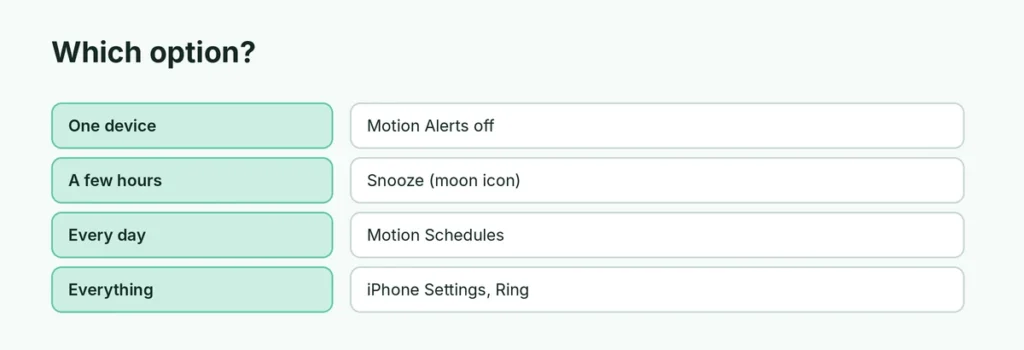
| You want to… | Do this | Recording still happens? |
|---|---|---|
| Stop motion alerts on one device | Device → Motion Alerts off | Yes |
| Mute alerts for a few hours | Alerts Snooze (one device) or the moon icon (all) | Yes |
| Quiet at set times every day | Motion Schedules | Depends on settings |
| Stop every Ring notification | iPhone Settings → Notifications → Ring | Yes |
| Stop recording motion too | Turn off Motion Detection | No |
Doorbell rings and Priority Alerts still come through during a snooze, so you won’t miss a visitor.
Turn off motion alerts for one device
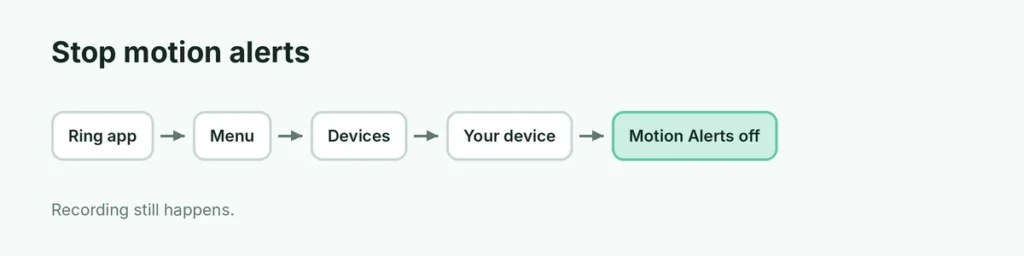
- Open the Ring app and tap the ☰ menu.
- Tap Devices and choose the doorbell or camera.
- At the top, toggle off Motion Alerts. On a doorbell, you can also turn off Ring Alerts (button presses).
Turning off alerts doesn’t stop recording. Turning off Motion Detection stops both alerts and motion recording, which also means no motion videos in your history.
Snooze Ring alerts for a while
One device:
- In the Ring app, tap ☰ → Devices → the device.
- Tap the Alerts Snooze tile.
- Pick a Snooze Duration and tap Start Snooze. Tap End Snooze to stop early.
All devices (Global Snooze):
- Tap the crescent moon icon at the top of the main Ring screen.
- Pick a duration and tap Start Snooze.
Snooze is perfect for a party, gardening day or a delivery you’re expecting.
Schedule quiet times (Motion Schedules)
- Open the device page in the Ring app.
- Find Motion Schedules (under the device’s motion settings) and add the times you don’t want alerts, such as when you’re home in the evening.
- Save. Alerts pause automatically during those hours, every day.
Turn off all Ring notifications on iPhone
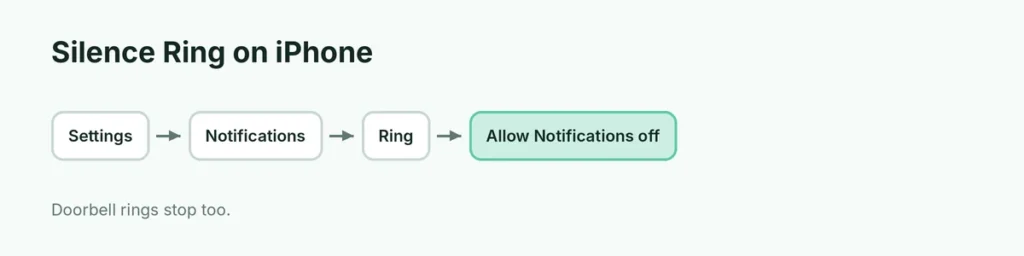
- Open Settings → Notifications.
- Scroll to Ring and tap it.
- Turn off Allow Notifications, or keep it on and turn off Sounds or Lock Screen if you just want them quieter.
You can also use a Focus mode (swipe down → Focus) to silence Ring at night while letting calls through. In the Ring app, set important devices as Priority Alerts so they can break through Focus.
Too many alerts? Fix the cause
- Adjust Motion Settings or sensitivity on the device page so cars and trees don’t trigger it.
- Set up motion zones to ignore the street or a neighbor’s yard.
- Turn on person detection (where your plan supports it) to get alerts only for people.
Related guides
- How to turn off Focus on iPhone
- How to hide notifications on the iPhone Lock Screen
- How to turn off vibration on iPhone
The short version
In the Ring app, open ☰ → Devices → your device and turn off Motion Alerts, or tap the moon icon to snooze every device. Use Motion Schedules for daily quiet hours. To silence Ring completely, go to iPhone Settings → Notifications → Ring and turn off Allow Notifications. Doorbell rings still come through during a snooze.
Sources
- Ring Support: Managing alerts for Ring doorbells and cameras
- Ring Support: Troubleshooting notifications from Ring