By
By 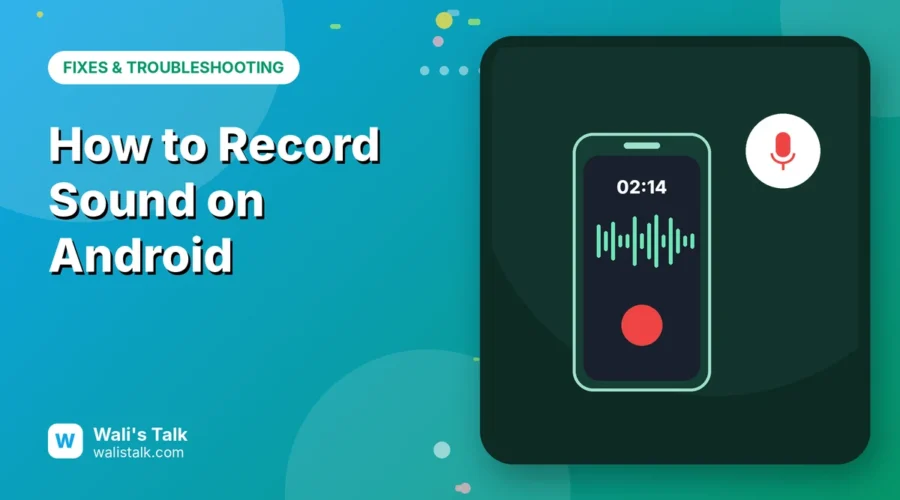
Every Android phone can record sound, whether it’s a lecture, a meeting, a song idea or a quick voice memo, but the app you use depends on your phone’s brand. Pixels have Google’s Recorder app, Samsung Galaxy phones have Voice Recorder, and almost every other Android phone ships with its own sound recorder. Here’s how to record audio on each, where the recordings are saved, and how to get the best sound.
Short answer: open your phone’s built-in recorder app: Recorder on Google Pixel, Voice Recorder on Samsung Galaxy, or the Sound Recorder or Recorder app on Motorola, OnePlus, Xiaomi and others. Tap the red Record button, tap Pause or Stop when you’re done, then name and save the file. Recordings appear in the recorder app’s list, and you can share them from there.
Applies to: Android phones including Google Pixel (Recorder app) and Samsung Galaxy (Voice Recorder, One UI 6.1 and later for Galaxy AI transcripts), October 2026. App names vary by brand.
Which recording app does your phone have?
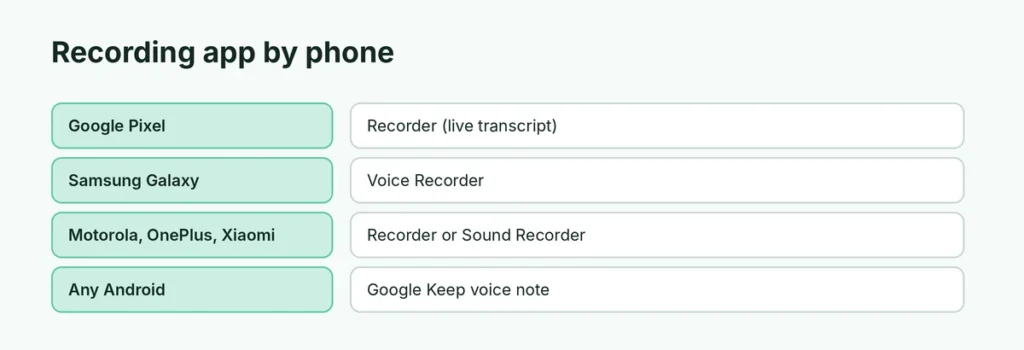
| Phone | Built-in app | Extras |
|---|---|---|
| Google Pixel | Recorder | Live transcript, search by words, up to 18 hours per recording |
| Samsung Galaxy | Voice Recorder | Standard and Interview modes, Galaxy AI transcript and summary |
| Motorola, OnePlus, Xiaomi, others | Recorder or Sound Recorder | Basic recording, pause and share |
| Any Android | Google Keep or a free recorder app | Voice notes with a text transcript in Keep |
Can’t find it? Swipe up to open your apps list and search for record. If nothing shows up, install your phone maker’s recorder from the Play Store, or use Google Keep‘s microphone button for short voice notes.
How to record sound on a Google Pixel
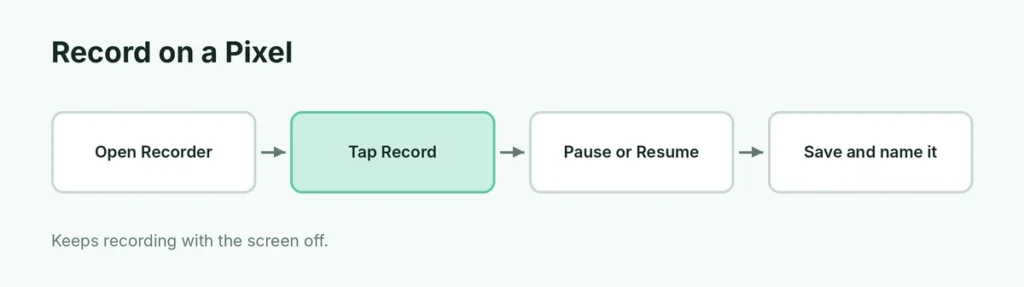
- Open the Recorder app.
- Tap the red Record button.
- Tap Pause to take a break and Resume to carry on.
- Tap Save when you’re finished, then tap the title to rename it.
Recording keeps going when the screen turns off, and a Currently recording notification shows while it runs. Recorder also writes a live transcript, so later you can search a recording for a word someone said.
How to record sound on a Samsung Galaxy
- Open Voice Recorder (it’s often in a Samsung folder).
- Optional: tap Menu → Settings → Recording mode and pick Standard (meetings, lectures, memos) or Interview (two people facing the top and bottom of the phone).
- Tap the red Record button. You can pause, resume and add a bookmark at an important moment.
- Tap Stop, type a name, choose a category and tap Save.
Find all your recordings under Menu → All recordings. On Galaxy phones with Galaxy AI (One UI 6.1 or later), open a recording and tap the Transcript assist icon to turn it into text, translate it or summarize it.
How to record on other Android phones
- Open the Recorder or Sound Recorder app.
- Tap Record, then Stop when done.
- Name the file if asked and tap Save.
The steps are almost identical on every brand. Look for a red circle button.
Where are recordings saved on Android?
- Inside the app: every recorder keeps a list of your recordings. This is the easiest way to play, rename or share them.
- In your files: open the Files app and look in Recordings, Music or Voice Recorder folders, depending on the brand.
- Online (Pixel): if Recorder is linked to your Google Account with backup and sync turned on, recordings also appear at recorder.google.com on a computer.
To send a recording, open it in the app, tap Share, and choose WhatsApp, Gmail, Google Drive or another app.
Tips for clearer recordings
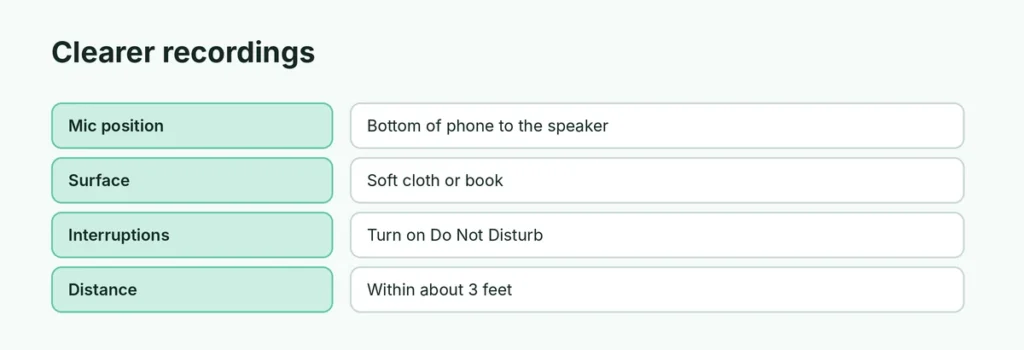
- Point the bottom of the phone at the speaker. That’s where the main microphone usually is.
- Put the phone on a soft surface, such as a book or folded cloth, so it doesn’t pick up table bumps.
- Turn on Do Not Disturb so notification sounds and vibrations don’t land in the recording.
- Stay within about 3 feet (1 meter) of the person speaking in a noisy room.
- Check your storage first. Long recordings take space; here’s what to do if your Android storage is almost full.
Can you record phone calls on Android?
Some phones can, depending on the model and country. Google’s Phone app and Samsung’s Phone app include call recording in some regions, and they announce to the other person that the call is being recorded. Laws on recording calls differ between US states and countries, and some require everyone on the call to agree, so always tell the other person first.
Recording sound vs recording your screen
The recorder app captures only what the microphone hears. If you want to capture a video of your screen with sound, such as a game or a tutorial, you need the screen recorder instead: see how to screen record on Samsung.
Related guides
- How to set up voicemail on Android
- How to back up an Android phone
- Android storage almost full? How to free space
The short version
Open your phone’s built-in recorder (Recorder on Pixel, Voice Recorder on Samsung, Sound Recorder on most others), tap the red Record button, then Stop and Save. Recordings live in the app’s list and in the Files app, and you can share them with one tap. For clearer sound, point the bottom of the phone at the speaker and turn on Do Not Disturb.
Sources
- Google Pixel Help: Create, edit and delete recordings on Pixel
- Samsung US: Use Voice Recorder with Galaxy AI on Galaxy phones or tablets
- Samsung UK: How to record, play back and share voice recordings on your Galaxy phone