By
You press the power button and your Samsung TV stays black. The small red standby light under the screen is the best clue to what’s wrong: whether it’s on, off or blinking tells you exactly where to look. Here’s how to fix a Samsung TV that won’t turn on, using Samsung’s own steps.
Short answer: look at the red standby light. If it’s on, the TV has power: press the physical power button on the TV. If that works, your remote is the problem. Pair it again by holding Return and Play/Pause for 3 seconds. If the light is off or blinking, unplug the TV for 30 seconds and plug it straight into a wall outlet, not a surge protector. If nothing changes, contact Samsung Support.
Applies to: Samsung Smart TVs, including QLED, Neo QLED, The Frame and Crystal UHD models, November 2026.
What the red light tells you
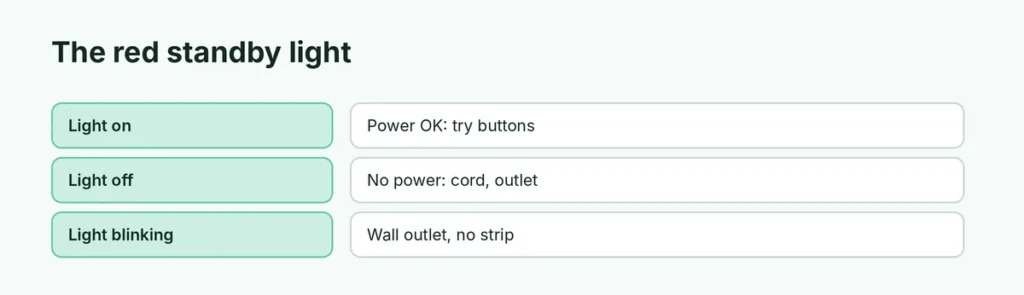
| Standby light | What it means | Start with |
|---|---|---|
| Red light on | TV has power but isn’t responding | The power button on the TV, then the remote |
| Light off | No power, or the TV is actually on with a black screen | The power cord and outlet |
| Light blinking | Something is wrong with the power supply or TV | Unplug 30 seconds, wall outlet, no surge protector |
The red light normally turns off when the TV is on. If the light is off and you hear sound, the TV is on but the picture or input is the problem.
Red light on: try the TV button and the remote
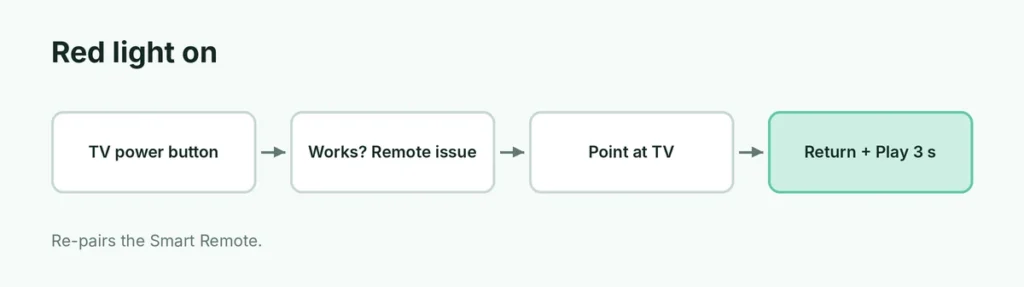
- Press the physical Power button on the TV. Its place varies by model: under the middle of the screen, on the back or on the side.
- If the TV turns on, the remote is the problem. Replace the batteries, or charge a solar remote (USB-C port on the bottom).
- Pair the remote again: point it at the front of the TV and press and hold Return and Play/Pause together for 3 seconds or more.
- If neither button works, contact Samsung Support.
Lost the remote? See how to turn on a Samsung TV without the remote.
Light off: check the power
- Make sure the power cord is pushed firmly into the TV (or the One Connect Box) and the wall.
- Unplug the TV for 30 seconds, then plug it into an outlet you know works. Test the outlet with a lamp or phone charger.
- With a One Connect Box, unplug and reconnect the thin One Connect cable between the box and the TV.
- If the red light comes on now, the old outlet or power strip was the problem.
Light blinking: unplug and skip the surge protector
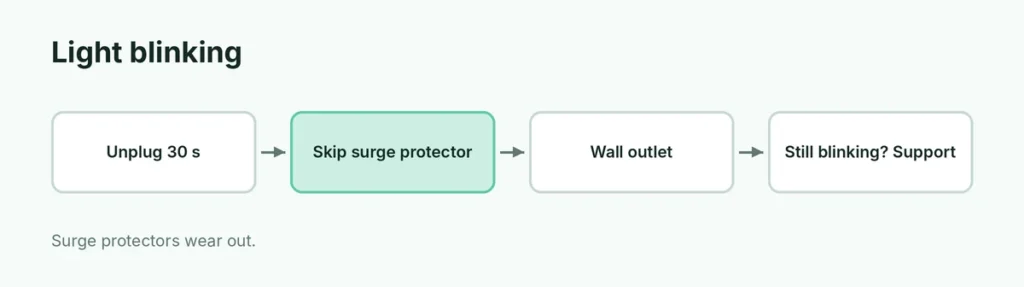
- Unplug the TV (and One Connect Box) for 30 seconds.
- Plug it directly into a wall outlet. Surge protectors wear out and stop supplying the right voltage.
- If the light now stays steady and the TV turns on, replace the surge protector.
- If it keeps blinking and won’t turn on, the TV needs service.
TV turns on but the screen stays black
- Press Source on the remote and pick the right HDMI input.
- Make sure the cable box, game console or streaming stick is turned on.
- If the TV switches itself off, check the Sleep Timer and Auto Power Off options in the TV’s power or energy-saving settings (the menu name varies by year).
When to call Samsung
If the TV won’t turn on with the remote or the TV button, from a working wall outlet, it’s likely a power board or panel fault. Contact Samsung Support with your model number from the label on the back. Check your warranty first; Samsung TVs usually have at least one year.
Related guides
- How to turn on a Samsung TV without the remote
- How to reset a Samsung TV
- Samsung TV not connecting to Wi-Fi? How to fix it
The short version
Check the red light. On means power is fine: try the TV’s own power button and re-pair the remote with Return + Play/Pause. Off or blinking means power: unplug for 30 seconds and use a wall outlet, not a surge protector. If it still won’t turn on, it’s time for Samsung Support.
Sources
- Samsung Support: What to do if your Samsung TV won’t turn on
- Samsung Support: How to fix a Samsung TV that won’t power on