 By
If your Samsung TV suddenly starts reading every menu, channel and button press out loud, the Voice Guide accessibility feature has been switched on, often by holding a remote button a little too long. It’s easy to turn off. Here’s how to stop the talking on a Samsung TV with the quick remote shortcut or through Settings, plus how to stop Bixby waking up by itself.
Short answer: on a Samsung Smart Remote, press and hold the volume (+/–) button for 2 seconds to open Accessibility Shortcuts, then select Voice Guide to turn it off. Or go to Settings → All Settings → General & Privacy → Accessibility → Voice Guide Settings → turn off Voice Guide. On older TVs, try Menu → System → Accessibility → Voice Guide.
Applies to: Samsung smart TVs (Tizen), including recent models with the Samsung Smart Remote, November 2026. Menu names vary a little by year and model.
Which voice is talking?
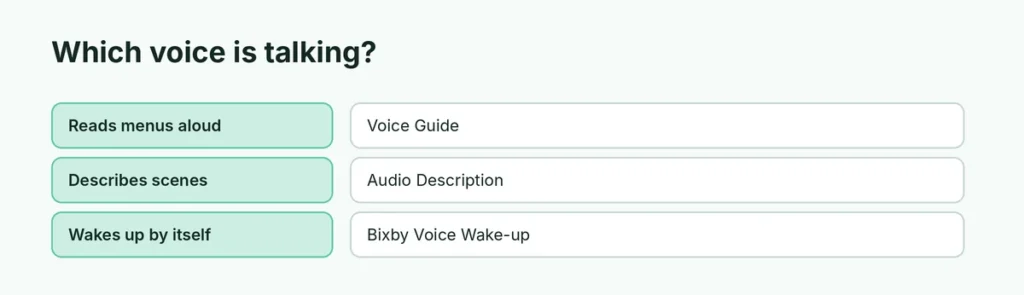
| What you hear | What it is | How to turn it off |
|---|---|---|
| The TV reads menus and buttons aloud | Voice Guide | Accessibility → Voice Guide Settings |
| A narrator describes what’s happening in a show | Audio Description | Accessibility → Audio Description |
| Bixby answers or wakes up on its own | Bixby voice wake-up | Settings → General & Privacy → Voice |
Fastest way: the remote shortcut
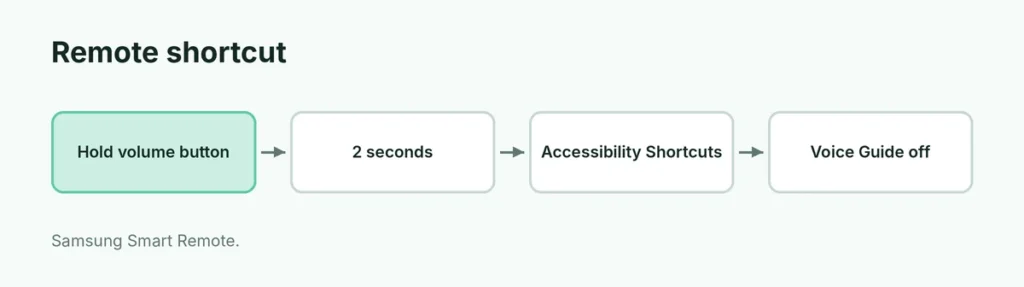
- Press and hold the volume button (+/–) on the Samsung Smart Remote for 2 seconds or longer.
- The Accessibility Shortcuts menu opens.
- Select Voice Guide to turn it off.
The shortcut menu itself may still speak a little; that’s normal even with Voice Guide off.
Turn off Voice Guide in Settings
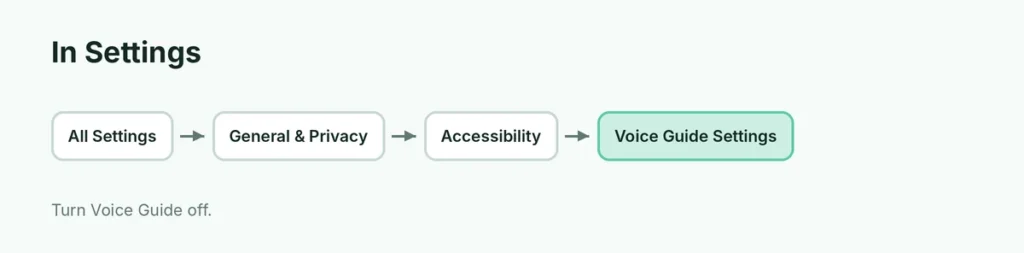
- Press Home (or the Settings button) on the remote and open Settings → All Settings.
- Go to General & Privacy (on some TVs just General) → Accessibility.
- Select Voice Guide Settings.
- Turn off Voice Guide.
Older Samsung TVs: press Menu → System → Accessibility → Voice Guide, and set it to Off.
Turn off Audio Description
If a narrator is describing scenes in movies and shows, that’s Audio Description: go to Settings → General & Privacy → Accessibility and turn off Audio Description. Some streaming apps also have their own audio-description track in the audio menu.
Stop Bixby waking up by itself
- Go to Settings → General & Privacy → Voice.
- Select Bixby Voice Settings.
- Turn off Voice Wake-up.
You can still talk to Bixby by holding the microphone button on the remote. To keep it but reduce accidental wake-ups, set Wake-up Sensitivity to Low.
Still talking?
- Restart the TV: hold the power button until it turns off and on again.
- Update the software: Settings → Support → Software Update → Update Now.
- Lost or broken remote? See how to turn on a Samsung TV without a remote.
Related guides
- How to reset a Samsung TV
- How to download apps on a Samsung TV
- How to screen mirror to a Samsung TV
The short version
Hold the volume button on the Samsung remote for 2 seconds, then turn off Voice Guide in Accessibility Shortcuts. Or go to Settings → General & Privacy → Accessibility → Voice Guide Settings and switch it off. Turn off Audio Description if a narrator describes scenes, and Voice Wake-up in Bixby settings if the assistant keeps waking up.
Sources
- Samsung UK Support: How to disable the Voice Guide function on your Samsung TV
- Guiding Tech: How to turn off Voice Assistant and Voice Guide on Samsung TV