By
Your Samsung TV says it can’t connect to the network, Netflix won’t load, or the Wi-Fi name doesn’t even show up. Most of the time the problem is a stuck router or TV, and a 30-second power cycle fixes it. Here’s how to fix a Samsung TV that’s not connecting to Wi-Fi, step by step, using Samsung’s own menus.
Short answer: unplug both the TV and your router for 30 seconds, plug them back in and wait a few minutes. Then go to Settings → All Settings → Connection → Network → Network Status to see where the connection breaks. If it still won’t connect, use Reset Network in the same menu and set up Wi-Fi again. Updating the TV software and moving the router closer fix most of the rest.
Applies to: Samsung Smart TVs (Tizen), including 2020-2026 models, November 2026. Older models put Network under Settings → General.
Find where the connection breaks
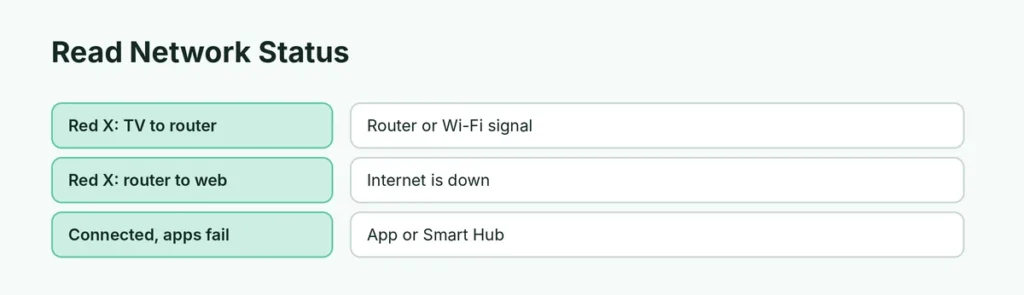
Go to Settings → All Settings → Connection → Network → Network Status. The TV shows a picture of TV → router → internet:
| What Network Status shows | Where the problem is | What to do |
|---|---|---|
| Red X between TV and router | The TV can’t reach your router | Restart the router, move it closer, check the password |
| Red X between router and internet | Your internet is down | Check other devices; call your internet provider |
| Connected, but apps won’t load | An app or Smart Hub problem | See apps not working on Samsung TV |
Fix 1: Power cycle the TV and router
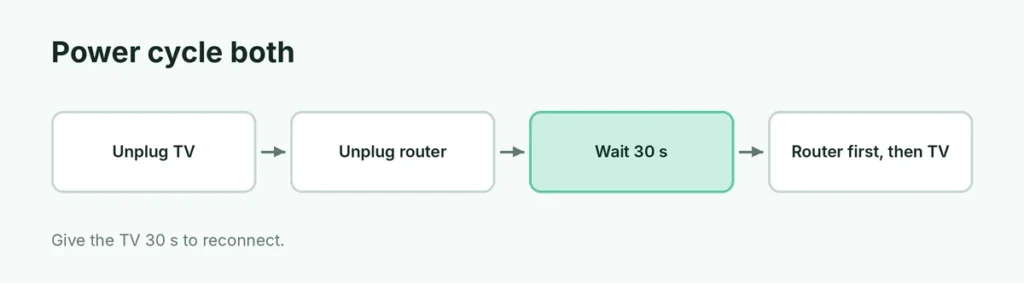
- Unplug the TV from the wall.
- Unplug your router (and modem, if separate).
- Wait at least 30 seconds.
- Plug the router back in first, wait until its lights are steady, then plug in the TV.
- Give the TV 30 seconds after turning on before testing. It needs time to reconnect.
Fix 2: Check the router and signal
- Do other devices have internet? If your phone on the same Wi-Fi can’t load anything either, the problem is the router or your provider, not the TV.
- Move the router closer or remove obstacles. TVs often sit behind cabinets or walls with weak signal.
- Try Ethernet. A network cable from the router to the TV is the most reliable connection and proves whether the TV’s network works.
- Double-check the password. It’s case-sensitive; select the eye icon to see what you typed.
Fix 3: Reset the TV network settings
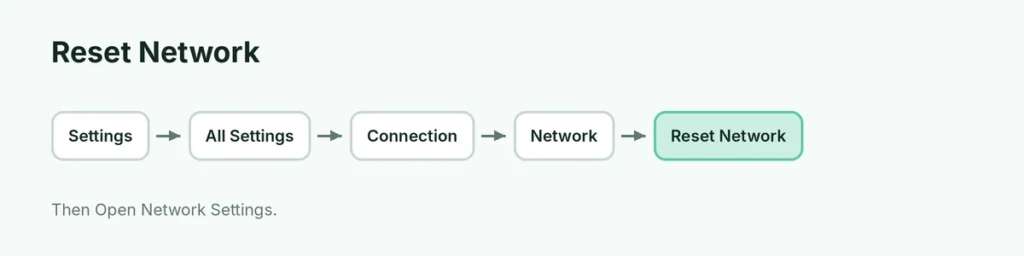
- Go to Settings → All Settings → Connection → Network.
- Select Reset Network and confirm Reset.
- Go back to Network → Open Network Settings.
- Choose Wireless, pick your Wi-Fi, enter the password and select Done.
Fix 4: Update the TV software
Old software can cause network bugs. If you can connect with an Ethernet cable, go to Settings → Support → Software Update → Update Now. Without internet, download the update from Samsung’s website on a computer, copy it to a USB drive and install it from the same menu.
Fix 5: Factory reset (last resort)
A factory reset erases every setting and signs you out of your apps, so try it last:
- Go to Settings → All Settings → General & Privacy → Reset.
- Enter your PIN. The default is 0000.
- Select Reset and set the TV up again.
On some models the option is under Settings → Support → Self Diagnosis. See our full guide to resetting a Samsung TV.
Still not connecting?
If the TV won’t connect by cable or Wi-Fi even after a reset, while other devices work fine, the TV’s network hardware may need repair. Contact Samsung Support with your model number (found on the back label or in Settings → Support → About This TV).
Related guides
- How to reset a Samsung TV
- How to clear the cache on a Samsung TV
- How to turn on a Samsung TV without the remote
The short version
Unplug the TV and router for 30 seconds, then check Network Status to see whether the break is between TV and router or router and internet. Move the router closer or use Ethernet, then try Reset Network and reconnect. Update the TV software, and factory reset only as a last step.
Sources
- Samsung Support: Solving Wi-Fi connection issues on your Samsung TV
- Samsung US Support: An app will not work on my Samsung TV